Emotet Trojan Virus: Overview, Impact, Infections, Prevention, And Removal
Category: TROJAN VIRUS | 14th June 2026 | Author: CSI'S TEAM
Emotet Is A Highly Dangerous And Adaptive Trojan Malware That Originally Emerged As A Banking Trojan But Has Since Evolved Into A Sophisticated Malware Delivery Platform. Instead Of Performing A Single Malicious Function, Emotet Acts As A “loader,” Meaning It Infects A System And Then Downloads Additional Malware Such As Ransomware, Spyware, Or Other Trojans. Because Of Its Modular Design And Constantly Changing Techniques, Emotet Remains One Of The Most Persistent Cyber Threats.
Infection Mechanism And Delivery
Emotet Primarily Spreads Through Malicious Email Campaigns (phishing). These Emails Often Appear Legitimate And May Include Infected Word Or Excel Attachments, Password-protected ZIP Files, Or Malicious Links. Once A User Enables Macros In A Document Or Opens A Compromised File, The Trojan Is Executed And Silently Installs Itself In The Background.
It Also Spreads Through Network Propagation, Meaning Once It Infects One Machine In A Corporate Or Home Network, It Can Attempt To Spread To Other Connected Devices Using Stolen Credentials Or Brute-force Techniques.
Infected Browsers, Operating Systems, And Applications
Emotet Is Primarily A Windows-based Threat. It Targets:
Operating Systems:
Microsoft Windows 7 (especially Older Unpatched Systems)
Windows 8 / 8.1
Windows 10
Windows 11 (less Frequently But Still Vulnerable If Outdated Or Misconfigured)
Windows Server Environments In Enterprise Networks
Linux And MacOS Systems Are Generally Not Direct Targets, But They Can Be Indirectly Affected If They Are Connected To A Compromised Network.
Browsers: While Emotet Does Not Directly “infect” Browsers Like A Browser Hijacker, It Exploits Browsers Indirectly By Stealing Stored Credentials And Session Data. Commonly Affected Browsers Include:
Google Chrome
Mozilla Firefox
Microsoft Edge
Internet Explorer (legacy Systems)
Stolen Browser Data May Include Saved Passwords, Autofill Information, And Cookies, Which Attackers Use For Lateral Movement Or Identity Theft.
Applications And Software: Emotet Frequently Exploits Or Abuses:
Microsoft Office (Word, Excel, Outlook) Through Malicious Macros
Email Clients Like Microsoft Outlook (for Spreading Phishing Emails From Compromised Accounts)
Windows Scripting Components (PowerShell, WMI)
PDF Readers And Document Viewers In Phishing Campaigns
Infected Files And Payload Types: Emotet Commonly Arrives Through:
Email Attachments Disguised As Invoices, Receipts, Or Shipping Notices
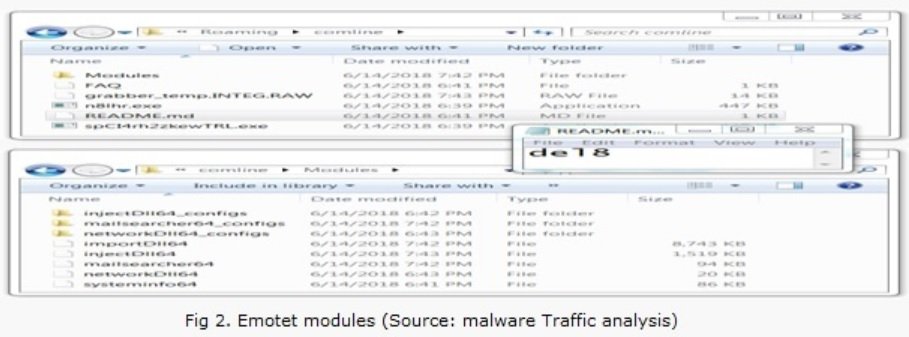
Once Executed, It Drops Encrypted Payloads In System Directories And Creates Persistence Mechanisms, Often Modifying Registry Keys Or Scheduled Tasks.
Behavior And Impact
After Infection, Emotet Establishes Communication With Command-and-control (C2) Servers. It Downloads Additional Malware Such As:
Ransomware (e.g., Ryuk Or Conti In Past Campaigns)
Credential Stealers
Banking Trojans
Cryptocurrency Miners
It Also Harvests Sensitive Information From The System, Including Email Contacts, Saved Passwords, And Network Details. One Of Its Most Dangerous Capabilities Is Email Thread Hijacking—where It Replies To Existing Email Conversations With Malicious Attachments, Making Phishing Attempts Appear Highly Legitimate.
Prevention Measures
Preventing Emotet Requires A Combination Of User Awareness And Technical Defenses:
Disable Macros By Default Microsoft Office Macros Should Remain Disabled Unless Absolutely Necessary. Many Emotet Infections Begin When Users Enable Macros In Malicious Documents.
Use Updated Security Software Install Reputable Antivirus Or Endpoint Protection Solutions With Real-time Scanning And Behavioral Detection.
Email Filtering And Awareness Use Spam Filters And Avoid Opening Unexpected Attachments, Especially From Unknown Senders Or Unusual Messages From Known Contacts.
System And Software Updates Keep Windows, Browsers, And Applications Fully Patched To Eliminate Vulnerabilities.
Least Privilege Access Avoid Using Administrator Accounts For Daily Tasks To Limit Malware Impact.
Network Security Use Firewalls And Intrusion Detection Systems In Enterprise Environments To Monitor Suspicious Traffic And Lateral Movement.
Removal Of Emotet
If Infection Is Suspected, Immediate Action Is Required:
Isolate The System Disconnect From The Internet And Local Network To Prevent Spread.
Run Full Antivirus Scan Use Updated Security Tools To Detect And Remove Malicious Files And Registry Entries.
Safe Mode Cleaning Booting Into Safe Mode Can Help Prevent The Malware From Actively Running During Removal.
Remove Suspicious Files And Scheduled Tasks Manually Check System Directories And Task Scheduler For Unknown Entries.
Reset Credentials Change All Passwords, Especially Email And Banking Credentials, From A Clean Device.
Reinstall If Necessary In Severe Cases, A Full System Reinstallation May Be Required To Ensure Complete Removal.
Conclusion
Emotet Remains One Of The Most Dangerous Trojans Due To Its Evolving Nature And Ability To Deliver Secondary Payloads. Its Reliance On Social Engineering Makes Human Awareness Just As Important As Technical Defenses. A Layered Security Approach Combining User Caution, Updated Systems, And Strong Endpoint Protection Is Essential To Defend Against This Persistent Threat.
Run A Full Scan And Delete/quarantine Detected Threats.
Step 4: Delete Temporary Files
Press Win + R, Type temp → Delete All Files.
Press Win + R, Type %temp% → Delete All Files.
Use Disk Cleanup: cleanmgr In The Run Dialog.
Step 5: Reset Hosts File
Go To: C:\Windows\System32\drivers\etc
Open hosts File With Notepad.
Replace With Default Content:
Step 6: Check Startup Programs
Press Ctrl + Shift + Esc → Open Task Manager
Go To Startup Tab
Disable Any Suspicious Entries.
Step 7: Reset Network Settings
Open Command Prompt As Administrator.
Run These Commands:
netsh Winsock Reset

netsh Int Ip Reset

ipconfig /flushdns
PART 2: Remove Malware From Web Browsers
? Common Signs Of Malware In Browser:
Unwanted Homepage Or Search Engine
Pop-ups Or Redirects
Unknown Extensions Installed
Step 1: Remove Suspicious Extensions
For Chrome:
Go To: chrome://extensions/
Remove Anything Unfamiliar
For Firefox:
Go To: about:addons → Extensions
Remove Suspicious Add-ons
For Edge:
Go To: edge://extensions/
Uninstall Unknown Add-ons
Step 2: Reset Browser Settings
Chrome:
Go To chrome://settings/reset → "Restore Settings To Their Original Defaults"
Firefox:
Go To about:support → "Refresh Firefox"
Edge:
Go To edge://settings/resetProfileSettings → "Reset Settings"
Step 3: Clear Cache And Cookies
All Browsers:
Use Ctrl + Shift + Del → Select All Time
Clear Cookies, Cached Files, And Site Data
Step 4: Check Search Engine & Homepage Settings
Make Sure They Are Not Hijacked.
Chrome: chrome://settings/search
Firefox: about:preferences#search
Edge: edge://settings/search
Step 5: Use Browser Cleanup Tools (Optional)
Chrome: chrome://settings/cleanup
Use Malwarebytes Browser Guard For Real-time Browser Protection.
FINAL TIPS: Prevent Future Malware
Always Download Software From Trusted Sources.
Keep Windows, Browsers, And Antivirus Updated.
Avoid Clicking Suspicious Links Or Ads.
Use ad Blockers And reputable Antivirus Software.
Backup Your Files Regularly.
Short Summary: Malware Removal Guide (PC & Web Browser)
To Remove Malware From Your Windows PC, Start By Booting Into Safe Mode, Uninstalling Suspicious Programs, And Scanning With Trusted Anti-malware Tools Like Malwarebytes. Clear Temporary Files, Reset Your Network Settings, And Check Startup Apps For Anything Unusual.
For web Browsers, Remove Unwanted Extensions, Reset Browser Settings, Clear Cache And Cookies, And Ensure Your Homepage And Search Engine Haven’t Been Hijacked. Use Cleanup Tools Like Chrome Cleanup Or Browser Guard For Added Protection.
?? Prevention Tips: Keep Software Updated, Avoid Suspicious Downloads, And Use Antivirus Protection Plus Browser Ad Blockers. Regular Backups Are Essential.
VPN - How To Use IT
1. Choose A Trusted VPN Provider
Why It Matters: Not All VPNs Offer Malware Protection.
What To Look For: Providers With built-in Malware/ad/tracker Blockers (e.g., NordVPN’s Threat Protection, ProtonVPN’s NetShield).
Reason: Security Patches Fix Known Vulnerabilities.
Tip: Enable Auto-updates Or Check For Updates Weekly.
. Use VPN On All Devices
Scope: Malware Can Enter Through Phones, Tablets, Or IoT Devices.
Solution: Install VPN Apps On Every Internet-connected Device.
8. Don’t Rely On VPN Alone
Fact: VPNs Do Not Remove Or Detect Malware On Your System.
Complement It With:
Antivirus Software
Firewall
Browser Extensions For Script Blocking
9. Avoid Clicking Unknown Links While VPN Is On
VPN Encrypts Traffic But Can’t Stop Malware From Executing If You Download Infected Files.
10. Use VPN With Split Tunneling Cautiously
Split Tunneling Allows Certain Apps/sites To Bypass VPN.
Tip: Never Exclude Browsers, Email Clients, Or Download Managers From VPN Tunneling.
Short Note - VPN Uses
A VPN (Virtual Private Network) Enhances Your Online Privacy By Encrypting Your Internet Traffic And Masking Your IP Address. It Protects Your Data On Public Wi-Fi, Hides Browsing Activity From Hackers And ISPs, And Helps Bypass Geo-restrictions. VPNs Also Add A Layer Of Defense Against Malware By Blocking Malicious Websites And Trackers When Using Advanced Features. However, A VPN Does Not Remove Existing Malware Or Act As Antivirus Software. For Full Protection, Combine VPN Use With Antivirus Tools, Regular Software Updates, And Cautious Browsing Habits. Always Choose A Reputable VPN Provider With Strong Security And Privacy Policies.
 Blog's Page