 Blog's Page
 Blog's Page
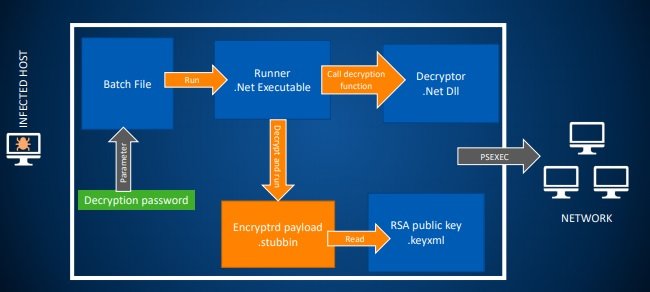
SamSam Is A Sophisticated Form Of Ransomware That First Appeared In 2015 And Became One Of The Most Damaging Targeted Ransomware Families In The World. Unlike Many Ransomware Variants That Spread Through Phishing Emails, SamSam Was Manually Deployed By Attackers After They Gained Unauthorized Access To A Victim’s Network. The Attackers Commonly Exploited Vulnerable Servers, Weak Remote Desktop Protocol (RDP) Credentials, FTP Services, And Unpatched Systems To Infiltrate Organizations. Once Inside, They Moved Laterally Across Networks, Identified Valuable Systems, And Then Encrypted Files On Multiple Computers Simultaneously.
The Ransomware Gained Notoriety For Attacking Hospitals, Government Agencies, Educational Institutions, Transportation Departments, And Private Businesses. Some Of Its Most Famous Victims Included The City Of Atlanta, The Colorado Department Of Transportation, Healthcare Organizations, And Municipal Governments Across North America. Unlike Mass-distributed Ransomware Campaigns, SamSam Focused On Carefully Selected Targets, Allowing Attackers To Demand Higher Ransom Payments.
According To U.S. Authorities, The Operators Behind SamSam Earned Approximately $6 Million In Ransom Payments And Caused More Than $30 Million In Damages Through System Recovery Costs, Downtime, And Remediation Efforts.
The SamSam Attackers Typically Followed These Steps:
Gain Access To A Vulnerable Server Or RDP Service.
Escalate Privileges Within The Network.
Perform Reconnaissance To Identify Important Systems.
Deploy The Ransomware Manually Across Multiple Devices.
Encrypt Files And Display Ransom Notes Demanding Payment In Bitcoin.
This Approach Made SamSam Particularly Dangerous Because It Often Affected Entire Organizations Rather Than Individual Computers.
SamSam Primarily Targeted Valuable Business And Personal Files. After Infection, The Ransomware Encrypted Numerous File Types, Making Them Inaccessible To Users. Commonly Affected Files Included:
Microsoft Office Documents (.doc, .docx, .xls, .xlsx, .ppt, .pptx)
PDF Files
Text Files
Database Files (.sql, .mdb)
Image Files (.jpg, .png, .bmp)
Archive Files (.zip, .rar)
Audio And Video Files
Network-shared Files
Backup Files Stored On Connected Systems
Once Encrypted, Many Files Were Renamed With Extensions Associated With The SamSam Variant Being Used. A Ransom Note Was Then Left On The Infected System, Instructing Victims On How To Purchase Bitcoin And Pay The Ransom.
SamSam Generally Avoided Encrypting Critical Operating System Files Because Doing So Could Prevent The Computer From Functioning And Reduce The Likelihood Of Ransom Payment. Instead, It Focused On Valuable User And Organizational Data.
SamSam Primarily Targeted:
Operating Systems
Microsoft Windows 7
Microsoft Windows 8
Microsoft Windows 8.1
Microsoft Windows 10
Windows Server 2008
Windows Server 2012
Windows Server 2016
Because Many Organizations Relied Heavily On Windows-based Infrastructures, These Systems Became The Primary Targets. The Ransomware Was Not Specifically Designed For Linux Or MacOS Environments, Although Shared Files On Mixed Networks Could Still Be Affected If Accessible From Compromised Windows Machines.
Browsers
SamSam Did Not Directly Target Web Browsers. However, Users Accessing Compromised Services Through Common Browsers Could Be Indirectly Affected. Systems Using The Following Browsers Were Commonly Present In Affected Environments:
Google Chrome
Mozilla Firefox
Internet Explorer
Microsoft Edge
The Browser Itself Was Not The Infection Vector; Instead, Vulnerabilities In Network Services And Weak Credentials Were The Primary Causes Of Infection.
Organizations Can Significantly Reduce The Risk Of SamSam-style Ransomware Attacks By Implementing The Following Security Measures:
1. Keep Systems Updated
Regularly Install Security Patches For Operating Systems, Servers, Applications, And Network Devices.
2. Secure Remote Desktop Services
Disable RDP When Not Needed.
Use Strong Passwords.
Enable Multi-factor Authentication (MFA).
3. Maintain Regular Backups
Store Backups Offline Or In Secure Cloud Environments And Test Them Regularly.
4. Use Endpoint Protection
Deploy Reputable Antivirus And Endpoint Detection And Response (EDR) Solutions.
5. Network Segmentation
Separate Critical Systems From General User Networks To Limit Lateral Movement.
6. Monitor Network Activity
Implement Intrusion Detection Systems And Continuously Monitor For Suspicious Behavior.
7. Apply Least-Privilege Access
Ensure Users Only Have The Permissions Necessary For Their Job Functions.
8. Conduct Security Awareness Training
Educate Employees About Cybersecurity Risks And Safe Computing Practices.
These Measures Help Prevent Both SamSam And Other Modern Ransomware Attacks.
Determining The Exact Number Of Infected Computers Is Difficult Because SamSam Often Attacked Entire Organizations Rather Than Individual Machines. Investigators Reported That The Ransomware Affected More Than 200 Organizations And Entities Across The United States And Canada Between 2015 And 2018. Many Of These Organizations Contained Hundreds Or Even Thousands Of Computers, Meaning The Total Number Of Impacted Systems Likely Reached Into The Thousands.
Research Conducted In 2018 Found That SamSam Targeted At Least 67 Organizations In A Single Year, With The Majority Located In The United States. Additional Victims Were Identified In Several Countries, Including:
United States
Canada
Portugal
France
Australia
Ireland
Israel
Reports Also Noted Incidents Across North America And The United Kingdom During The Campaign's Active Years.
SamSam Ransomware Stands Out As One Of The Earliest Examples Of Highly Targeted Ransomware Operations. Rather Than Relying On Mass Spam Campaigns, Its Operators Carefully Infiltrated Networks, Identified Valuable Assets, And Encrypted Critical Data Across Entire Organizations. The Attacks Caused More Than $30 Million In Damages, Impacted Over 200 Organizations, And Affected Multiple Countries Worldwide. Its Success Demonstrated How Dangerous Targeted Ransomware Can Be And Highlighted The Importance Of Patch Management, Strong Authentication, Network Monitoring, And Reliable Backups In Modern Cybersecurity Strategies.
Step 1: Boot Into Safe Mode
Restart Your PC And Press F8 (or Shift + F8 For Some Systems) Before Windows Loads.
Choose Safe Mode With Networking.
Safe Mode Prevents Most Malware From Loading.
Press Win + R, Type appwiz.cpl, And Press Enter.
Sort By Install Date And Uninstall Unknown Or Recently Added Programs.
Use A Trusted Anti-malware Tool:
Malwarebytes – https://www.malwarebytes.com
Screenshot Of Malwarebytes - Visit Links
Microsoft Defender – Built Into Windows 10/11
HitmanPro, ESET Online Scanner, Or Kaspersky Virus Removal Tool
ZoneAlarm Pro Antivirus + Firewall NextGen
VIPRE Antivirus - US And Others Countries, | India
Run A Full Scan And Delete/quarantine Detected Threats.
Win + R, Type temp → Delete All Files.Press Win + R, Type %temp% → Delete All Files.
Use Disk Cleanup: cleanmgr In The Run Dialog.
Go To: C:\Windows\System32\drivers\etc
Open hosts File With Notepad.
Replace With Default Content:
Press Ctrl + Shift + Esc → Open Task Manager
Go To Startup Tab
Disable Any Suspicious Entries.
Open Command Prompt As Administrator.
Run These Commands:
netsh Winsock Reset

netsh Int Ip Reset

ipconfig /flushdns
Unwanted Homepage Or Search Engine
Pop-ups Or Redirects
Unknown Extensions Installed
For Chrome:
Go To: chrome://extensions/
Remove Anything Unfamiliar
For Firefox:
Go To: about:addons → Extensions
Remove Suspicious Add-ons
For Edge:
Go To: edge://extensions/
Uninstall Unknown Add-ons
Chrome:
Go To chrome://settings/reset → "Restore Settings To Their Original Defaults"
Firefox:
Go To about:support → "Refresh Firefox"
Edge:
Go To edge://settings/resetProfileSettings → "Reset Settings"
All Browsers:
Use Ctrl + Shift + Del → Select All Time
Clear Cookies, Cached Files, And Site Data
Make Sure They Are Not Hijacked.
Chrome: chrome://settings/search
Firefox: about:preferences#search
Edge: edge://settings/search
Chrome: chrome://settings/cleanup
Use Malwarebytes Browser Guard For Real-time Browser Protection.
Always Download Software From Trusted Sources.
Keep Windows, Browsers, And Antivirus Updated.
Avoid Clicking Suspicious Links Or Ads.
Use ad Blockers And reputable Antivirus Software.
Backup Your Files Regularly.
To Remove Malware From Your Windows PC, Start By Booting Into Safe Mode, Uninstalling Suspicious Programs, And Scanning With Trusted Anti-malware Tools Like Malwarebytes. Clear Temporary Files, Reset Your Network Settings, And Check Startup Apps For Anything Unusual.
For web Browsers, Remove Unwanted Extensions, Reset Browser Settings, Clear Cache And Cookies, And Ensure Your Homepage And Search Engine Haven’t Been Hijacked. Use Cleanup Tools Like Chrome Cleanup Or Browser Guard For Added Protection.
?? Prevention Tips: Keep Software Updated, Avoid Suspicious Downloads, And Use Antivirus Protection Plus Browser Ad Blockers. Regular Backups Are Essential.
Why It Matters: Not All VPNs Offer Malware Protection.
What To Look For: Providers With built-in Malware/ad/tracker Blockers (e.g., NordVPN’s Threat Protection, ProtonVPN’s NetShield).
Purpose: Prevents Data Leaks If Your VPN Connection Drops.
Benefit: Ensures Your Real IP And Browsing Activity Aren’t Exposed To Malware-distributing Websites.
Why It Matters: DNS Leaks Can Expose Your Online Activity To Attackers.
Solution: Enable DNS Leak Protection In Your VPN Settings Or Use A Secure DNS Like Cloudflare (1.1.1.1).
Risk: Free VPNs Often Contain Malware, Sell User Data, Or Lack Security Features.
Better Option: Use Reputable Paid VPNs That Offer security Audits And Transparent Privacy Policies.
Some VPNs Block Known Phishing And Malicious Sites.
Example: Surfshark’s CleanWeb, CyberGhost’s Content Blocker.
Reason: Security Patches Fix Known Vulnerabilities.
Tip: Enable Auto-updates Or Check For Updates Weekly.
Scope: Malware Can Enter Through Phones, Tablets, Or IoT Devices.
Solution: Install VPN Apps On Every Internet-connected Device.
Fact: VPNs Do Not Remove Or Detect Malware On Your System.
Complement It With:
Antivirus Software
Firewall
Browser Extensions For Script Blocking
VPN Encrypts Traffic But Can’t Stop Malware From Executing If You Download Infected Files.
Split Tunneling Allows Certain Apps/sites To Bypass VPN.
Tip: Never Exclude Browsers, Email Clients, Or Download Managers From VPN Tunneling.
A VPN (Virtual Private Network) Enhances Your Online Privacy By Encrypting Your Internet Traffic And Masking Your IP Address. It Protects Your Data On Public Wi-Fi, Hides Browsing Activity From Hackers And ISPs, And Helps Bypass Geo-restrictions. VPNs Also Add A Layer Of Defense Against Malware By Blocking Malicious Websites And Trackers When Using Advanced Features. However, A VPN Does Not Remove Existing Malware Or Act As Antivirus Software. For Full Protection, Combine VPN Use With Antivirus Tools, Regular Software Updates, And Cautious Browsing Habits. Always Choose A Reputable VPN Provider With Strong Security And Privacy Policies.
SamSam Ransomware, Remove SamSam Ransomware, Uninstall SamSam Ransomware, Delete SamSam Ransomware, Get Rid Of SamSam Ransomware, SamSam Ransomware Re