 Blog's Page
 Blog's Page
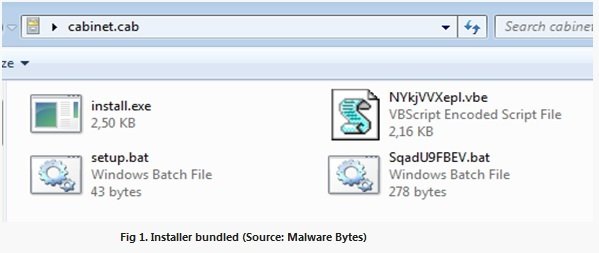
An Adware Campaign Named “Kuik” Has Been Reported, Which Disguises Itself As A Legitimate Adobe Flash Player Update. The Malware Package Consists Of Three Main Components: A Legitimate Flash Player File (used As A Decoy), A Certificate, And An Executable Named upp.exe. The upp.exe File Acts As An Installer/bundler That Contains Additional Modules And Malicious Scripts, As Illustrated In Figure 1.
Once Executed On A Compromised System, The Malware Enumerates All Available Network Interfaces On The Victim’s Machine And Configures The DNS Server To 18.219.162.248 Across Them. It Also Installs Its Own Certificate Into The System’s Certificate Store To Facilitate Further Malicious Activity.
Indicators Of Compromise:
Domain
eventz.win:13463
18.219.162.248
Chrome Extensions:
After Initial Setup, The Malware Performs System Fingerprinting And Transmits The Collected Information To A Command-and-control Server In Order To Register The Infected Host With Its Domain Controller (kuikdelivery.com). Once Enrolled, The Malware Downloads And Executes Additional Payloads Designed For Various Malicious Activities, Including The Installation Of Rogue Chrome Extensions And Cryptocurrency Mining Components.
To Prevent Infection From The Kuik Adware Family (or Similar Fake “software Update” Malware), The Most Effective Approach Is A Combination Of Safe User Behavior, System Hardening, And Endpoint Protection. Since Kuik Typically Spreads By Disguising Itself As A Legitimate Adobe Flash Player Update, Prevention Starts With Awareness: Modern Browsers And Operating Systems No Longer Require Flash Player Updates, And Any Prompt Asking To Install Or Update Flash Should Be Treated As Suspicious.
First, Avoid Downloading Software From Untrusted Websites Or Pop-ups. Only Install Applications From Official Vendor Websites Or Verified App Stores. If A Website Unexpectedly Prompts You To Install An “update” Or Executable File (especially Something Like An .exe), Close It Immediately. Most Modern Attacks Rely Heavily On Social Engineering, Tricking Users Into Manually Executing The Malware.
Second, Keep Your Operating System And Security Patches Up To Date. Regular Updates To Windows, Browsers, And Security Components Close Vulnerabilities That Malware Can Exploit. Enable Automatic Updates Wherever Possible So That Critical Patches Are Applied Without Delay.
Third, Use A Reputable Antivirus Or Endpoint Protection Solution With Real-time Scanning Enabled. Modern Security Tools Can Detect Suspicious Installers Like Bundled Executables (for Example, Installer Bundles Similar To “upp.exe”) And Block Them Before Execution. Ensure That Cloud Protection And Heuristic Detection Features Are Enabled, As They Help Identify New Or Modified Malware Variants Even If They Are Not Yet In Signature Databases.
Fourth, Restrict Administrative Privileges On Your System. Many Malware Families Install System-level Changes Such As DNS Modification Or Certificate Injection Only When The User Has Admin Rights. Using A Standard User Account For Daily Activities Reduces The Impact Of Accidental Execution. Administrative Privileges Should Be Used Only When Necessary And For Trusted Installations.
Fifth, Enable Browser Security Features And Carefully Manage Extensions. Since Kuik-like Malware May Install Rogue Chrome Extensions, Regularly Review Installed Extensions And Remove Anything Unfamiliar Or Unnecessary. Use Browser Settings That Block Installation Of Extensions From Unknown Sources, And Avoid Sideloading Extensions Manually.
Sixth, Monitor DNS And Network Settings Periodically. Malware That Changes DNS Servers (like Setting A Malicious DNS Such As 18.219.162.248) Can Redirect Traffic To Phishing Or Malicious Sites. If You Notice Unexpected DNS Changes, Reset Them To Automatic Or Trusted Providers (such As ISP DNS Or Public Resolvers Like Google DNS Or Cloudflare DNS). Tools Like Windows Network Diagnostics Or Firewall Logs Can Help Detect Abnormal Changes.
Seventh, Disable Or Remove Deprecated Software Like Adobe Flash Player. Since Flash Is No Longer Supported, Keeping It Installed Increases Exposure To Fake Update Attacks. Removing Outdated Software Reduces The Attack Surface Significantly.
Finally, Maintain Regular Backups Of Important Data. Even If Malware Bypasses Defenses, Having Offline Or Cloud Backups Ensures You Can Recover Without Paying Ransom Or Losing Critical Files.
In Summary, Preventing Kuik Adware Infection Depends On Cautious Downloading Habits, Updated Systems, Strong Endpoint Protection, Restricted User Permissions, And Regular Monitoring Of System And Browser Changes. A Layered Security Approach Significantly Reduces The Risk Of Compromise.
Step 1: Boot Into Safe Mode
Restart Your PC And Press F8 (or Shift + F8 For Some Systems) Before Windows Loads.
Choose Safe Mode With Networking.
Safe Mode Prevents Most Malware From Loading.
Press Win + R, Type appwiz.cpl, And Press Enter.
Sort By Install Date And Uninstall Unknown Or Recently Added Programs.
Use A Trusted Anti-malware Tool:
Malwarebytes – https://www.malwarebytes.com
Screenshot Of Malwarebytes - Visit Links
Microsoft Defender – Built Into Windows 10/11
HitmanPro, ESET Online Scanner, Or Kaspersky Virus Removal Tool
ZoneAlarm Pro Antivirus + Firewall NextGen
VIPRE Antivirus - US And Others Countries, | India
Run A Full Scan And Delete/quarantine Detected Threats.
Win + R, Type temp → Delete All Files.Press Win + R, Type %temp% → Delete All Files.
Use Disk Cleanup: cleanmgr In The Run Dialog.
Go To: C:\Windows\System32\drivers\etc
Open hosts File With Notepad.
Replace With Default Content:
Press Ctrl + Shift + Esc → Open Task Manager
Go To Startup Tab
Disable Any Suspicious Entries.
Open Command Prompt As Administrator.
Run These Commands:
netsh Winsock Reset

netsh Int Ip Reset

ipconfig /flushdns
Unwanted Homepage Or Search Engine
Pop-ups Or Redirects
Unknown Extensions Installed
For Chrome:
Go To: chrome://extensions/
Remove Anything Unfamiliar
For Firefox:
Go To: about:addons → Extensions
Remove Suspicious Add-ons
For Edge:
Go To: edge://extensions/
Uninstall Unknown Add-ons
Chrome:
Go To chrome://settings/reset → "Restore Settings To Their Original Defaults"
Firefox:
Go To about:support → "Refresh Firefox"
Edge:
Go To edge://settings/resetProfileSettings → "Reset Settings"
All Browsers:
Use Ctrl + Shift + Del → Select All Time
Clear Cookies, Cached Files, And Site Data
Make Sure They Are Not Hijacked.
Chrome: chrome://settings/search
Firefox: about:preferences#search
Edge: edge://settings/search
Chrome: chrome://settings/cleanup
Use Malwarebytes Browser Guard For Real-time Browser Protection.
Always Download Software From Trusted Sources.
Keep Windows, Browsers, And Antivirus Updated.
Avoid Clicking Suspicious Links Or Ads.
Use ad Blockers And reputable Antivirus Software.
Backup Your Files Regularly.
To Remove Malware From Your Windows PC, Start By Booting Into Safe Mode, Uninstalling Suspicious Programs, And Scanning With Trusted Anti-malware Tools Like Malwarebytes. Clear Temporary Files, Reset Your Network Settings, And Check Startup Apps For Anything Unusual.
For web Browsers, Remove Unwanted Extensions, Reset Browser Settings, Clear Cache And Cookies, And Ensure Your Homepage And Search Engine Haven’t Been Hijacked. Use Cleanup Tools Like Chrome Cleanup Or Browser Guard For Added Protection.
?? Prevention Tips: Keep Software Updated, Avoid Suspicious Downloads, And Use Antivirus Protection Plus Browser Ad Blockers. Regular Backups Are Essential.
Why It Matters: Not All VPNs Offer Malware Protection.
What To Look For: Providers With built-in Malware/ad/tracker Blockers (e.g., NordVPN’s Threat Protection, ProtonVPN’s NetShield).
Purpose: Prevents Data Leaks If Your VPN Connection Drops.
Benefit: Ensures Your Real IP And Browsing Activity Aren’t Exposed To Malware-distributing Websites.
Why It Matters: DNS Leaks Can Expose Your Online Activity To Attackers.
Solution: Enable DNS Leak Protection In Your VPN Settings Or Use A Secure DNS Like Cloudflare (1.1.1.1).
Risk: Free VPNs Often Contain Malware, Sell User Data, Or Lack Security Features.
Better Option: Use Reputable Paid VPNs That Offer security Audits And Transparent Privacy Policies.
Some VPNs Block Known Phishing And Malicious Sites.
Example: Surfshark’s CleanWeb, CyberGhost’s Content Blocker.
Reason: Security Patches Fix Known Vulnerabilities.
Tip: Enable Auto-updates Or Check For Updates Weekly.
Scope: Malware Can Enter Through Phones, Tablets, Or IoT Devices.
Solution: Install VPN Apps On Every Internet-connected Device.
Fact: VPNs Do Not Remove Or Detect Malware On Your System.
Complement It With:
Antivirus Software
Firewall
Browser Extensions For Script Blocking
VPN Encrypts Traffic But Can’t Stop Malware From Executing If You Download Infected Files.
Split Tunneling Allows Certain Apps/sites To Bypass VPN.
Tip: Never Exclude Browsers, Email Clients, Or Download Managers From VPN Tunneling.
A VPN (Virtual Private Network) Enhances Your Online Privacy By Encrypting Your Internet Traffic And Masking Your IP Address. It Protects Your Data On Public Wi-Fi, Hides Browsing Activity From Hackers And ISPs, And Helps Bypass Geo-restrictions. VPNs Also Add A Layer Of Defense Against Malware By Blocking Malicious Websites And Trackers When Using Advanced Features. However, A VPN Does Not Remove Existing Malware Or Act As Antivirus Software. For Full Protection, Combine VPN Use With Antivirus Tools, Regular Software Updates, And Cautious Browsing Habits. Always Choose A Reputable VPN Provider With Strong Security And Privacy Policies.
Kuik Adware, Remove Kuik Adware, Delete Kuik Adware, Uninstall Kuik Adware, Get Rid Of Kuik Adware, How To Delete Kuik Adware